Assigning fees
Assigning is what actually charges students. Until a fee is assigned, it exists but nobody owes it.
Create the fee first — see Creating fees.
Assigning
- Open Financials → Assign/Create Fees.
- Pick the fee from Select Fee to Apply.
- Choose who owes it, using the Filter on Text panel:
- Individuals — search in Search students.. and check each name, or
- A group — pick it from the group dropdown and select Select Members. A line confirms the selection, e.g. "Marching Band members have been selected"
- In the Assign Fee panel, set any options you need (below).
- Select Assign Fee to Selected Students.
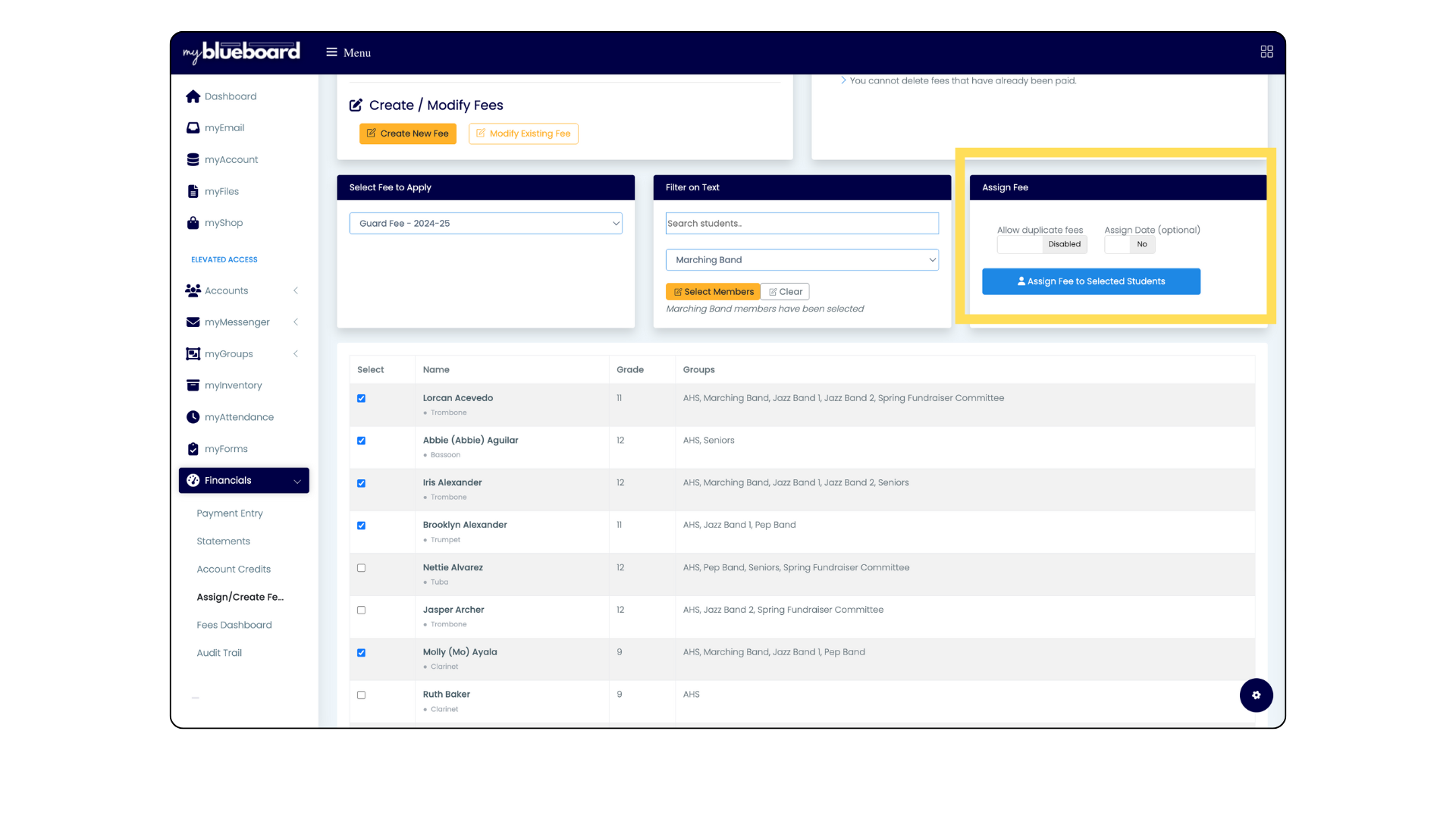
Clear resets the checkboxes if you pick the wrong group.
Options
Allow duplicate fees. Shown as Disabled by default. By default a student can't receive the same fee twice — the guard exists because double-assigning is a common and annoying mistake. Turn it on deliberately when a fee genuinely recurs, like a monthly lesson charge.
Assign Date (optional). Set when the fee should be dated. Leave it to use today.
Assigning by group
Groups are the efficient path when a fee applies to everyone in a section or ensemble: choose the group, select its members, and assign in one action.
Check the selection before assigning. Group membership changes through the season, and the students in a group today aren't necessarily who was in it when you planned the charge.
Before you assign to a large group
Assignment is quick; unpicking a bad assignment is not. Two minutes of checking saves an hour:
- Right fee? Names are similar across years — confirm the amount and academic year
- Right people? Scan the selected list, particularly for students who left
- Already assigned? If duplicates are off you'll be protected; if you turned them on, you won't be
- Right amount for everyone? If not, consider separate fees instead
Assign to two students first, check their statements, then do the rest. It's the cheapest insurance available.
Fixing a bad assignment
- Wrong amount — adjust it in the audit trail
- Wrong student — remove the assignment in the audit trail
- Wrong everyone — remove them individually; there's no bulk undo
Paid fees can't be deleted
Once a fee has been paid, it can't be removed — the payment record depends on it. This is deliberate: deleting a paid fee would destroy financial history.
If a paid fee was wrong, record a refund rather than trying to delete it.