Creating fees
A fee is a charge you can assign to students — a marching band fee, a uniform deposit, a trip payment. Creating it doesn't charge anyone; it defines the thing you'll then assign.
Creating one
- Open Financials → Assign/Create Fees.
- Under Create/Modify Fees, select Create a New Fee.
- Fill in the Create Fee form:
- New Fee Name — what families see on their statement
- Amount
- Academic Year
- Applicable Group — for your reference only
- Payment Priority — leave at 0 unless you want this fee settled before others
- Select Create.
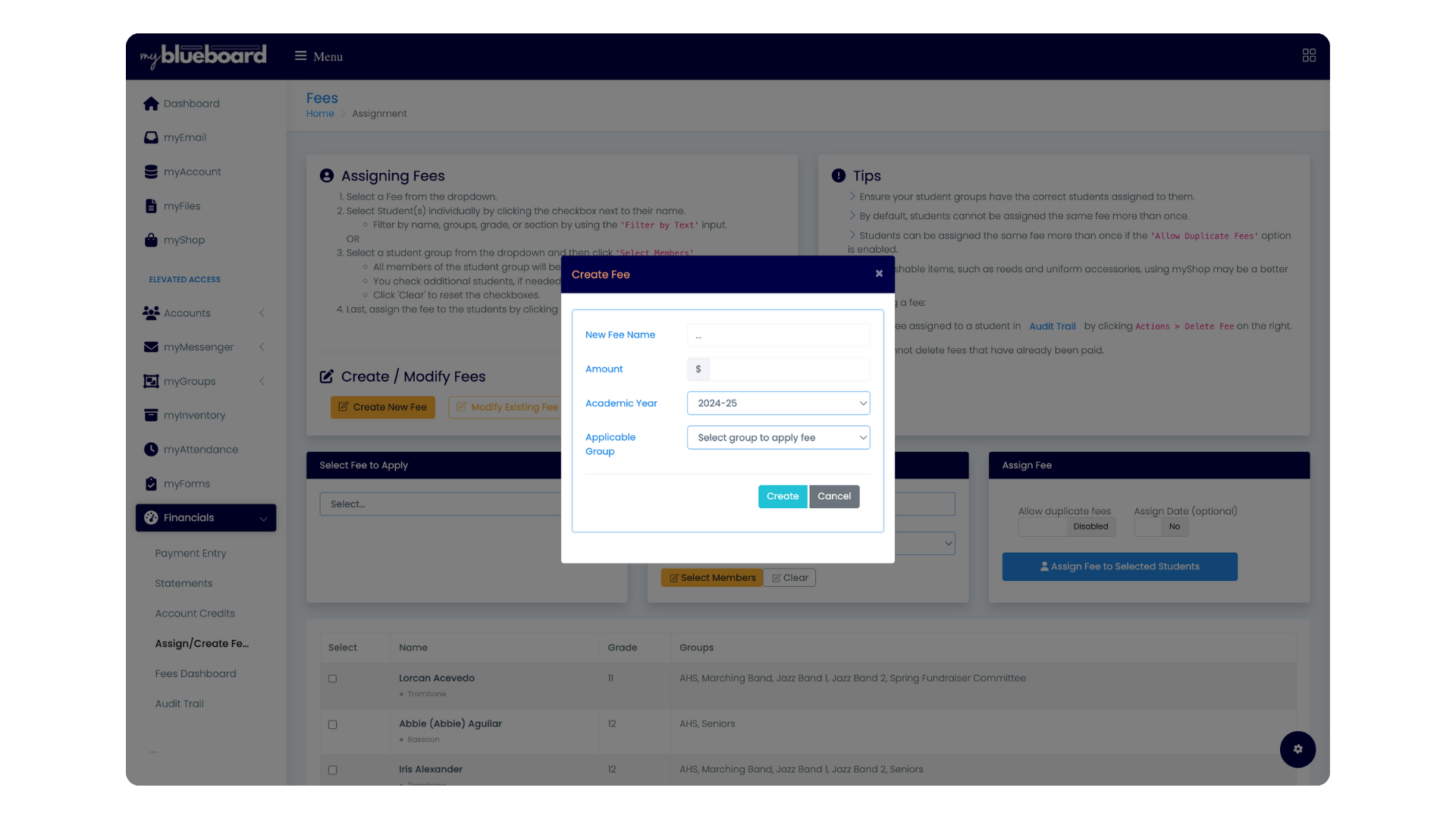
Choosing a group here does not assign the fee to anyone
The group on this form is a label for your own organization. It's what lets you create fees of the same name for several groups and tell them apart later.
Nobody is charged until you assign the fee.
Payment priority
Priority only matters if you let families apply their own credits to fees. It decides which fees have to be settled first.
0 means no priority — the default, and right for most fees. 1 is settled before everything else, then 2, and so on. A lower number wins, and two fees sharing a number don't block each other.
So if uniforms should be covered before trips, give the uniform fee 1 and the trip fee 2. A family can't put credits toward the trip until the uniform fee is clear.
The dialog lists your currently ranked fees underneath the box so you can see the order you've already set.
Priority has no effect on fees paid by card or cash — it only gates credits.
Naming fees
The name goes straight onto family statements, so write it for them, not for you:
- "2026 Marching Band Fee" beats "MB Fee" — families see charges months later and need to recognize them
- Include the year when a fee recurs annually. Statements span years, and three lines all reading "Uniform Deposit" are impossible to reconcile
- Say what it covers if it isn't obvious. "Trip Payment 2 of 3" prevents the email asking why they're being charged again
Amounts
Enter the amount every student assigned this fee will owe.
If different students owe different amounts for the same thing, you have two options:
- Separate fees — "Trip Fee (Full)" and "Trip Fee (Reduced)", assigned to different people
- One fee, then adjust — assign the same fee and change individual amounts in the audit trail
Separate fees are usually cleaner. Individual adjustments are invisible unless you go looking, which makes reconciling harder later.
For payment plans, see splitting a fee.
Academic year
Fees belong to an academic year, which is what keeps this season's charges separate from last season's on statements and reports.
Check the year before creating, especially in summer when you're setting up the coming season while the previous one is still active.
To change an existing fee, use Modify Existing Fee on the same page.
Combining fees into one view
Related fees can be grouped into a multi-fee view — a single dashboard covering several fees at once.
This is for reporting, not charging. A trip billed in three installments is three fees; a multi-fee view lets you see all three together instead of checking three dashboards. See the Fees Dashboard.