Selling Tickets Through myShop
myTickets doesn't take payments itself. It creates products in myShop, and families buy them through the same cart and checkout they use for spirit wear — with your PayPal or Stripe account and the same order records.
Creating the shop products
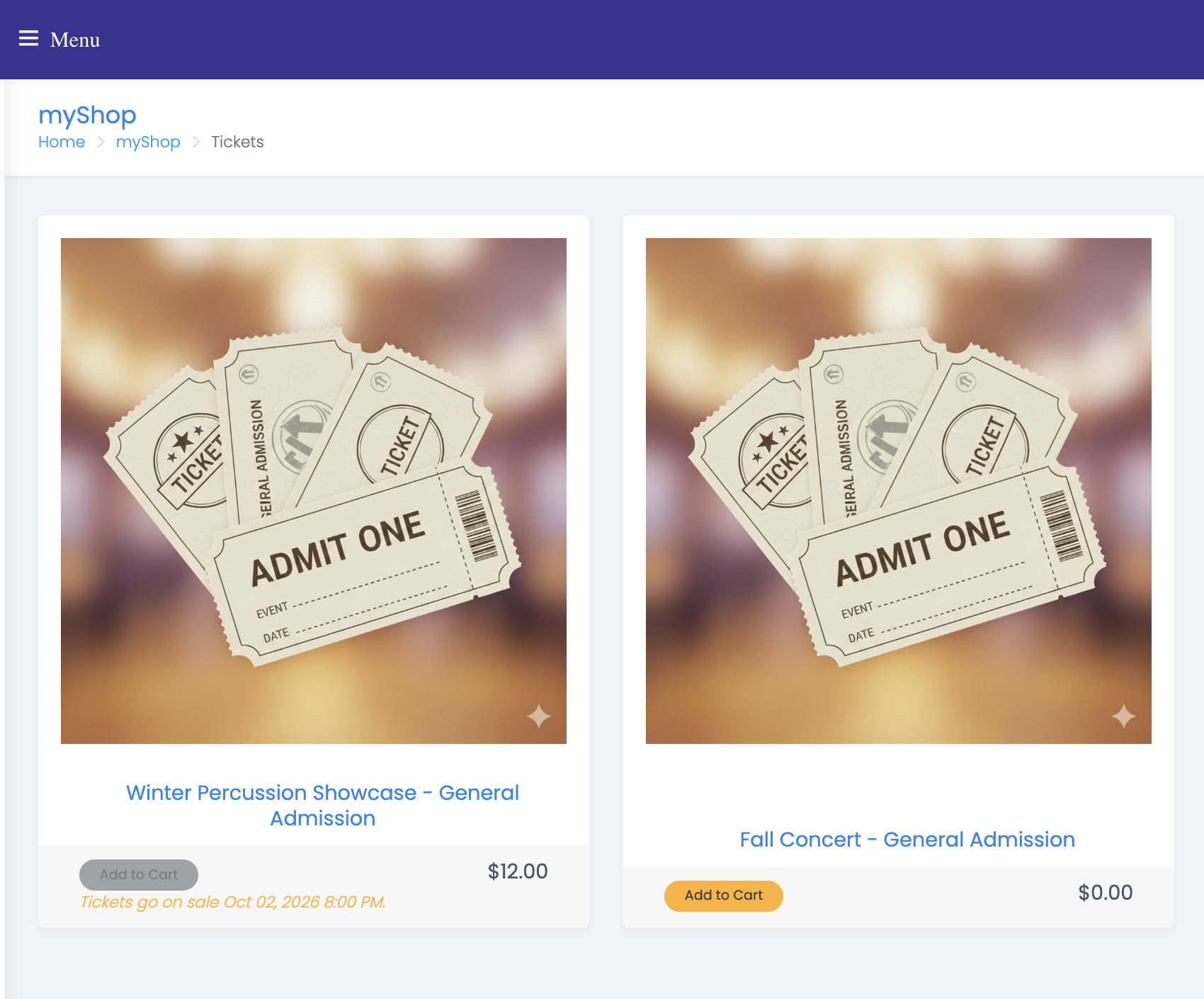
From Manage Event, choose Sell Tickets in myShop → Create Shop Products. You'll see the ticket types that are about to become products, and confirming creates one product per ticket type.
What gets created:
- A myShop category called Tickets, if you don't already have one. Every event's ticket products go into it
- A product per ticket type, titled Event name - Ticket type name
- A description built from the event's date, location and both descriptions
- A default ticket image
- Shipping turned off — tickets are delivered by email
Running it again is safe. Ticket types that already have a product are skipped, so it only fills in what's missing.
Afterwards the myShop Integration panel on Manage Event reads This event is available in myShop! and offers a View in myShop link.
What stays in sync afterward
You maintain the event and the ticket type; the product follows. Edit the event and the date, doors open time, location, venue details, event type and published status are pushed to every linked product. Edit the ticket type and the price, sold-out state, visibility and description follow.
The product page shows all of it back to the shopper in an Event Details panel — date and time, doors open, location and venue details, event type, ticket type and the ticket sale window.
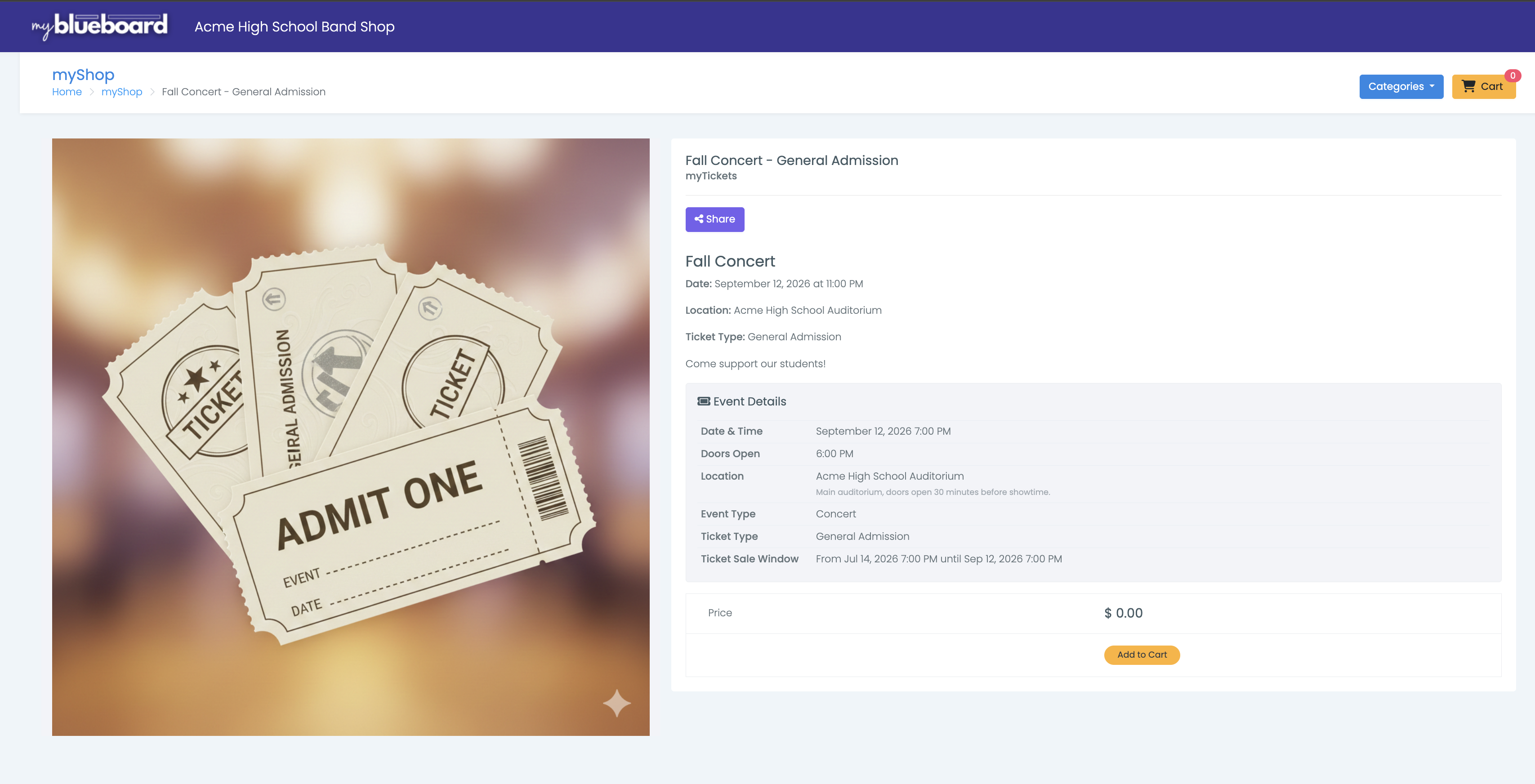
There is nothing to update on the myShop side — and nothing you can update there either. Open a ticket product in myShop and the title, price, category, visibility and stock fields are locked, with a Go to Ticket Type Settings button pointing back here. Description, images, checkout fields and promo codes stay editable on the product.
Note that myTickets rewrites the product description every time the ticket type is saved, so wording you want to keep belongs in the event or ticket type description, not on the product.
See Ticket products for the full list of what's locked.
How families buy
Two routes lead to the same cart:
- The public event page — families pick a quantity next to each ticket type and choose Add to Cart. The page shows the price, how many remain, and the reason a type isn't available (sold out, sale not started, sales ended)
- myShop — the ticket products sit in the Tickets category alongside everything else
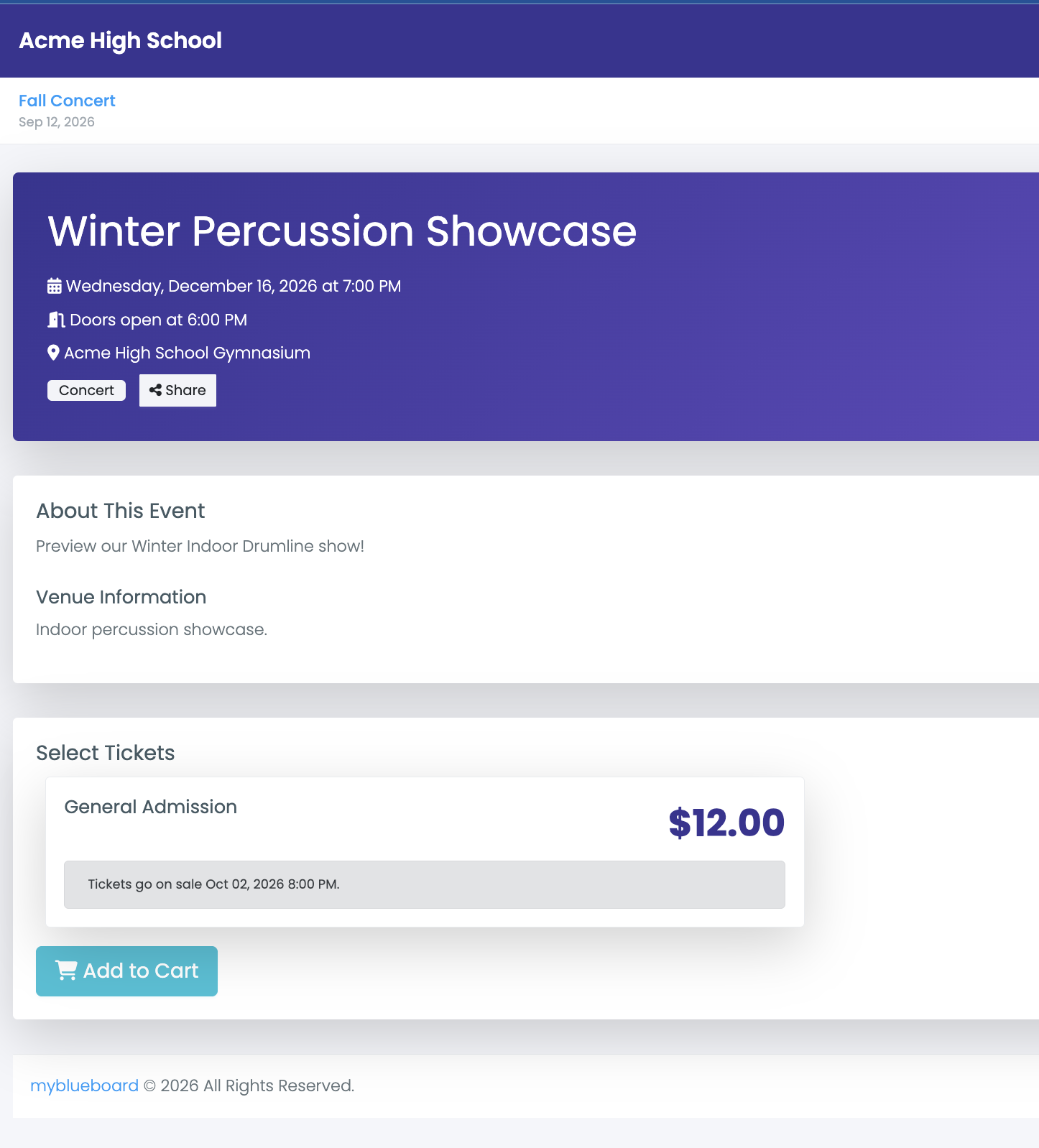
Share the event page link. It shows the event details, all ticket types together, and the digital program if you've published one — and it works for people who don't have a myblueboard account. Each ticket type states its own status in place, so a shopper looking at a type that isn't purchasable yet reads Tickets go on sale… instead of wondering.
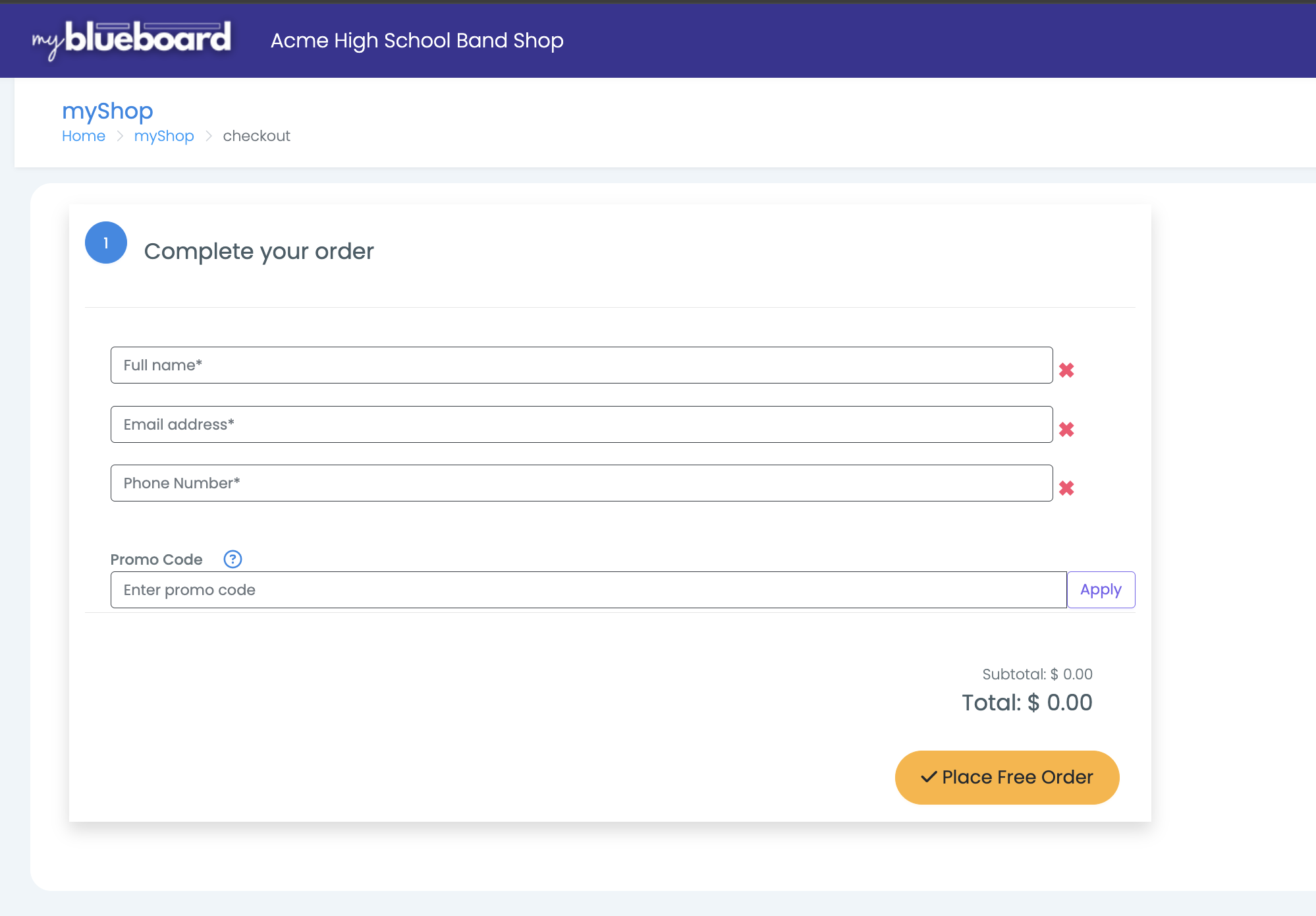
Checkout is the standard myShop checkout, promo code field included. A $0 ticket — free admission you still want to count heads for — needs no payment details at all and finishes with Place Free Order.
What happens at checkout
When an order containing ticket products is paid, myTickets:
- Creates a ticket order for each event in that cart — one myShop order covering two events produces two ticket orders
- Creates an individual ticket for every unit bought, each with its own unique ticket number and QR code
- Increases the ticket type's sold count
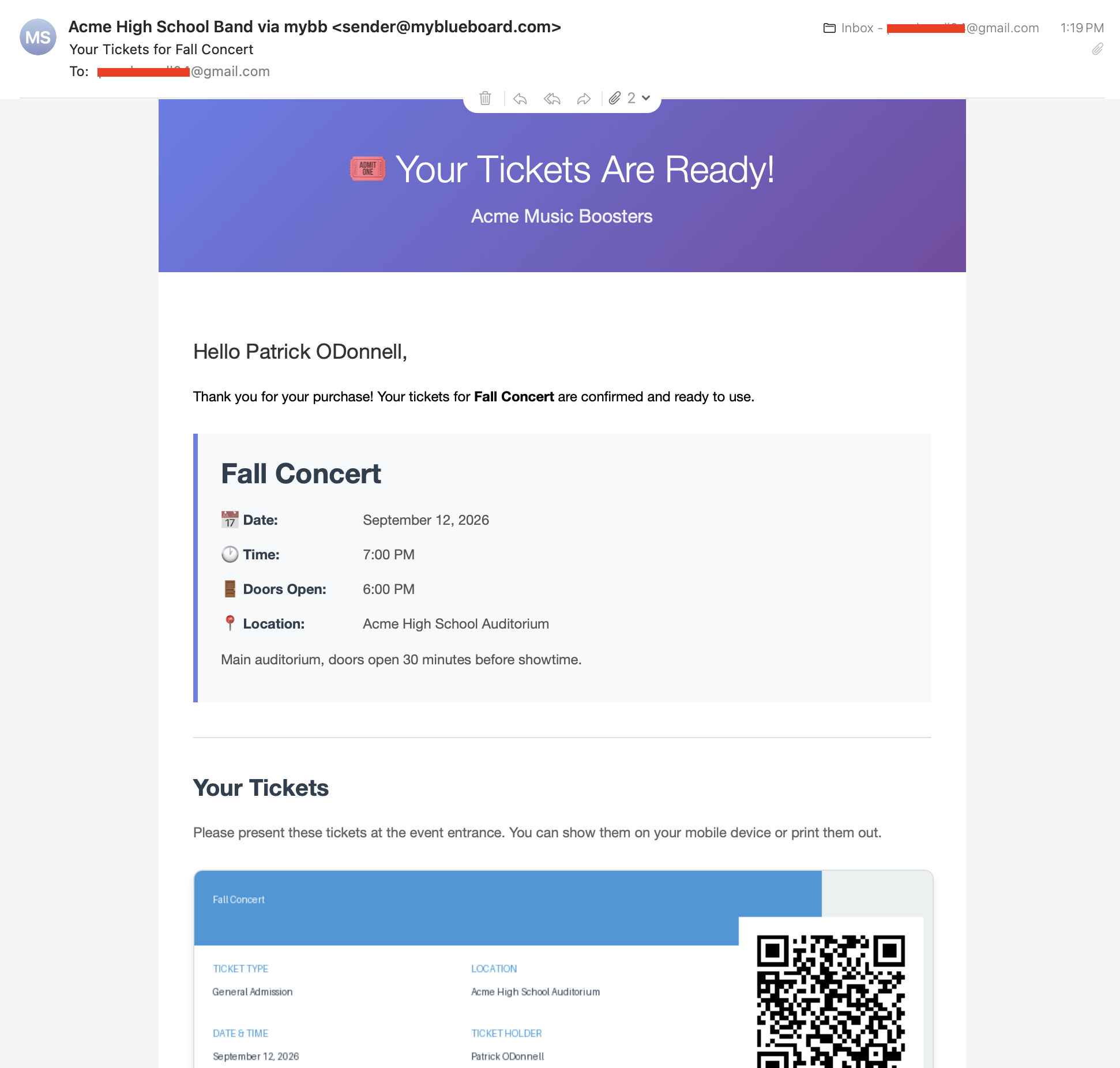
- Emails the purchaser "Your Tickets for event name", with each ticket embedded in the message as an image
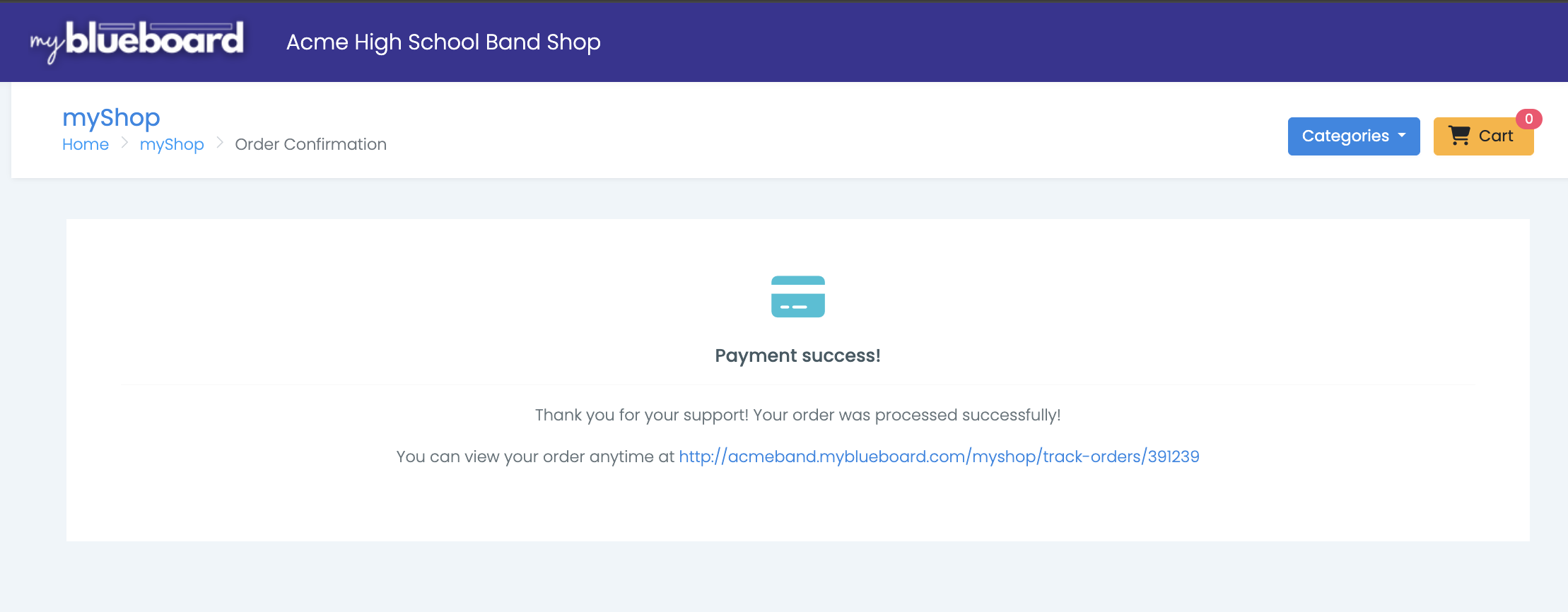
The confirmation page shows the tickets themselves — every ticket in the order with its QR code, type and number, under Your tickets, with a note to screenshot the page — plus a link to the order. The emailed myShop receipt carries the order link too.
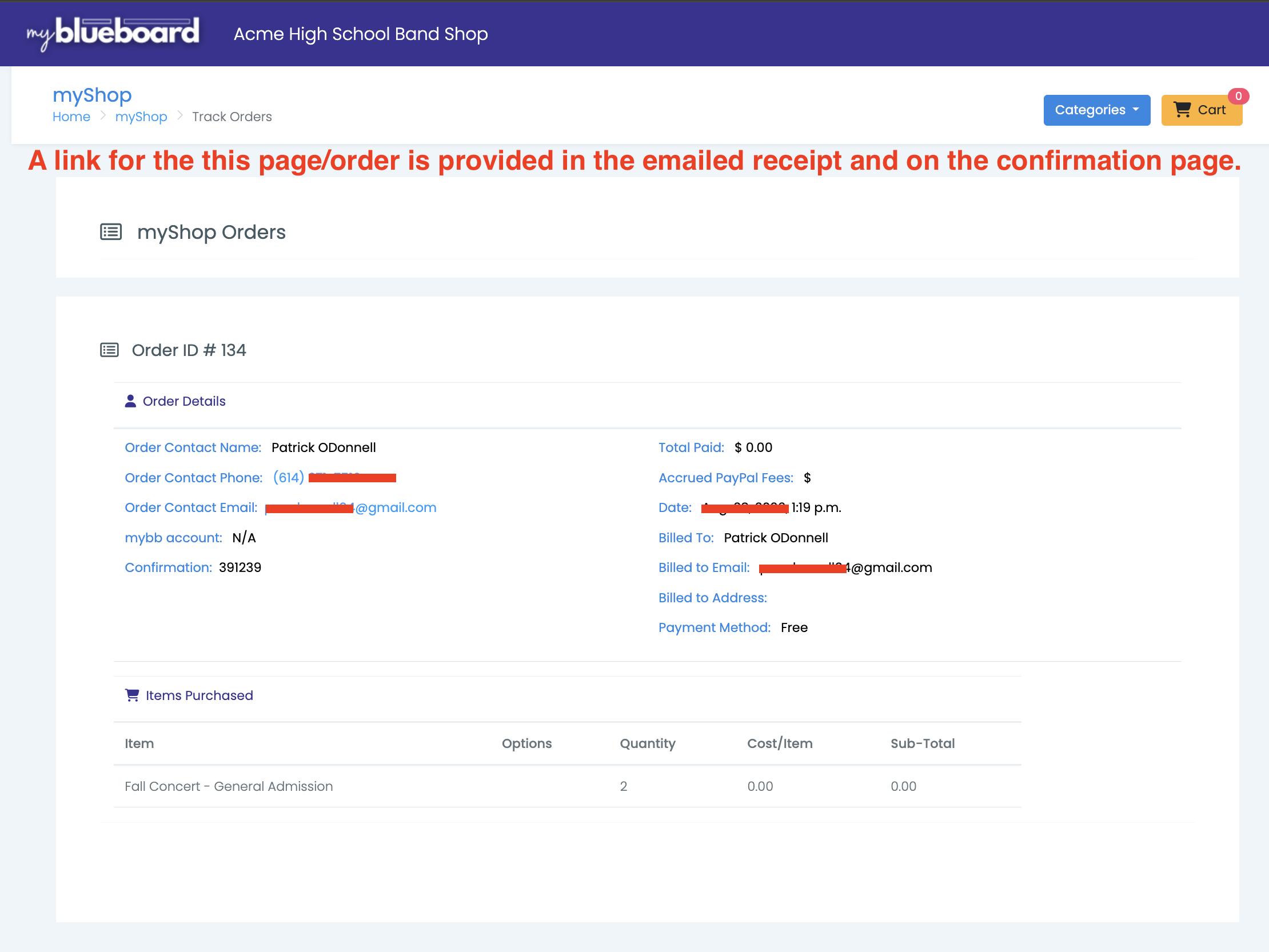
That link opens the myShop order — contact details, payment method and the items bought. It's the record of the purchase; the tickets themselves arrive separately.
The ticket email
The ticket email leads with the event — date, time, doors open, location and venue note — so a purchaser who opens it on the night has what they need without scrolling.
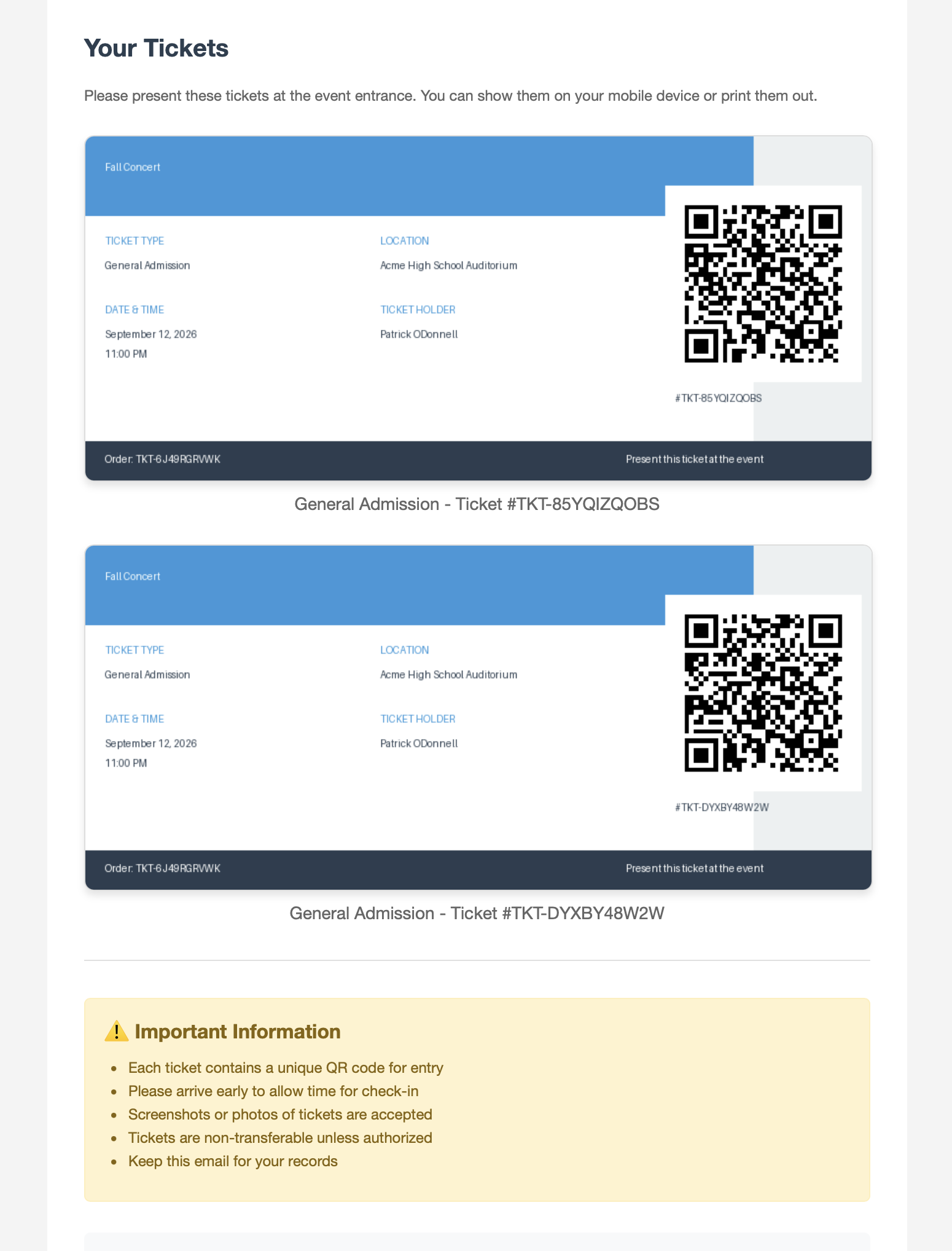
Below that is one ticket per seat, each with its own QR code and ticket number, followed by the notes families most often ask about — screenshots are accepted, arrive early, keep the email.
The email closes with an order summary and a View Order Details button.
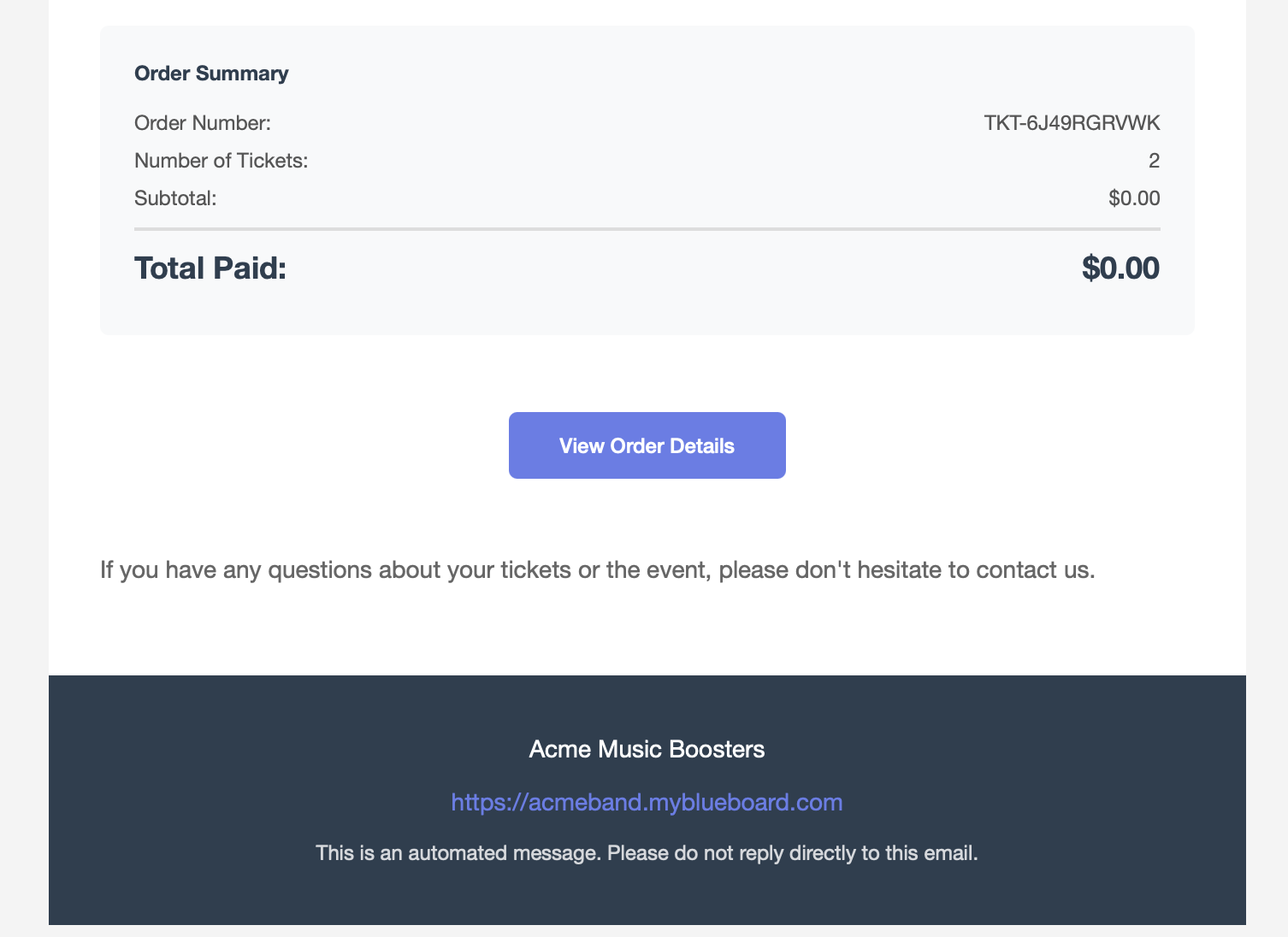
Ticket and order numbers both start with TKT-. The order number covers the whole purchase;
each ticket number identifies one seat. When a family calls about a problem, the order number
is the one to ask for.
Every ticket is issued in the purchaser's name — myTickets doesn't ask for a name per seat. For general admission that's normally what you want, and it's why a family of four arrives with four tickets all reading the same name. If you need to know who's coming, add checkout fields to the ticket product; the answers are recorded on the myShop order rather than printed on the tickets.
Send yourself a test ticket first
Manage Event → send a test ticket emails you a working sample so you can see what families receive and check that scanning works, without creating a real order. See Scanning tickets at the door.
The purchaser can also open their tickets any time from My Tickets in myblueboard, and the order page shows every ticket in the order with its QR code — useful when the email is buried or a phone won't load the image.
Selling tickets in person
Ticket products can be sold at the door or the table through the Point of Sale View like any other product — by card with Tap to Pay on iPhone or a Stripe card reader, or by cash or check.
A POS sale creates the tickets exactly as an online one does, but nothing is emailed unless the cashier types an address. Instead, the receipt QR code on the Sale complete screen is the hand-off: the buyer scans it, and the receipt that opens on their phone has their tickets with their entry QR codes on it, ready for the scanner. If they'd rather have it by email, enter their address on the same screen and both the receipt and the ticket email go out.
Where sales show up
Manage Event shows tickets sold and total revenue for that event, and sold-versus-available for each ticket type. The Event Dashboard totals it across every event.
Because the money moves through myShop, the myShop Dashboard and exports also cover ticket sales — that's where to go for payment details, order status and spreadsheets.
Refunds are handled in myShop like any other order. Refunding there does not invalidate the tickets — they stay scannable, and the ticket type's sold count doesn't go back down. If someone refunded shouldn't be admitted, tell your door volunteers, and contact myblueboard support if the tickets need to be voided.