Ticket Products
A myShop product can be linked to a ticket type in myTickets. Once linked, the product sells tickets to that event and stays in step with it automatically.
What syncs from the event
These come from myTickets and are maintained automatically — you don't set them on the product:
- Event date
- Doors open time
- Location and venue details
- Event type
Change them in myTickets and the product follows. Editing the event is the way to correct them; there's nothing to update on the myShop side.
Editing a ticket product
Open a ticket product in myShop and most of the form is locked. A banner across the top says so, and offers a Go to Ticket Type Settings button that takes you to the right place.
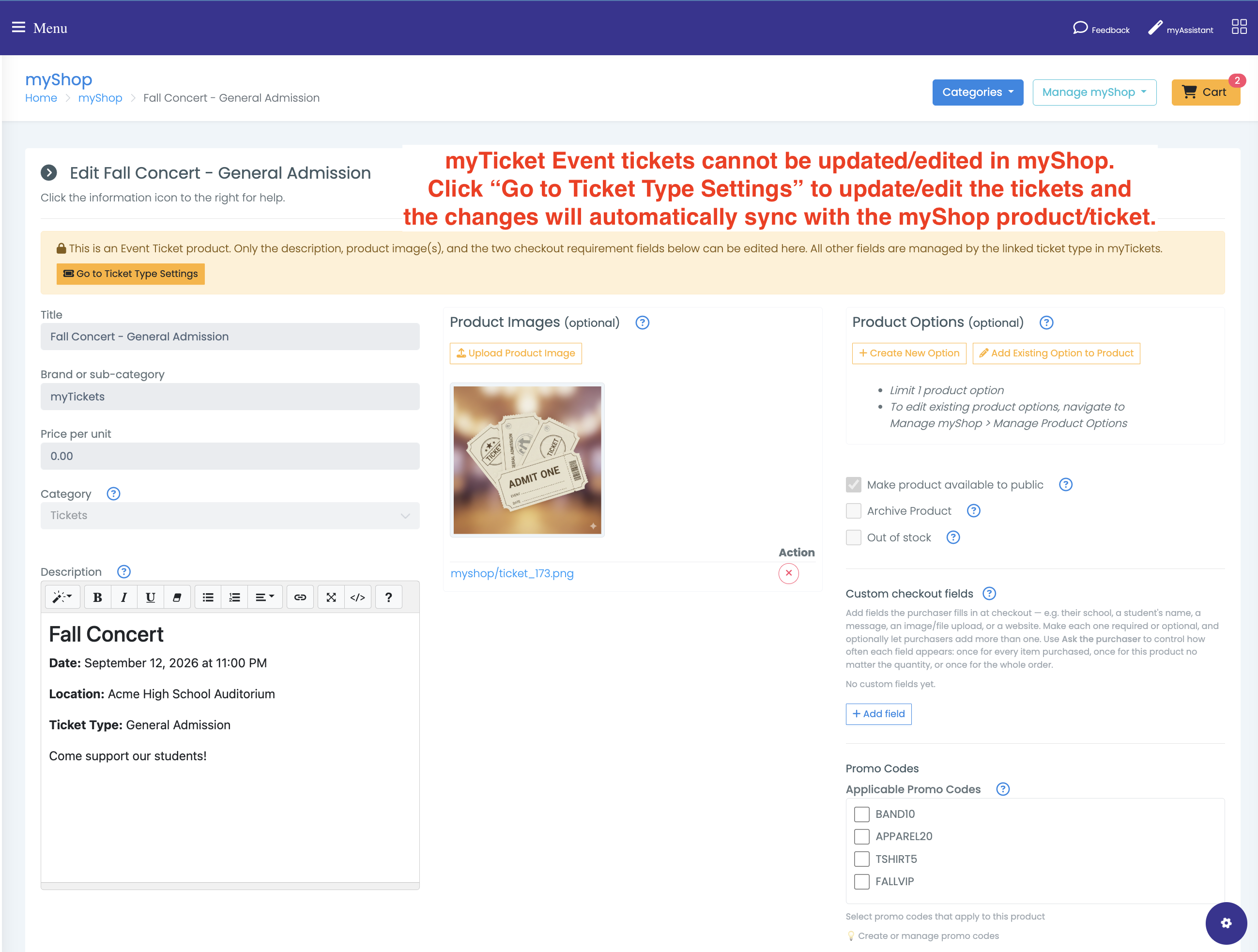
Managed by myTickets — locked here:
- Title, brand and category
- Price
- Make product available to public
- Archive Product and Out of stock
- Shipping and the PayPal account
Still editable on the product:
- Description
- Product images
- Checkout fields
- Product options
- Promo codes
The lock is enforced when you save, not just greyed out on screen — a locked field keeps its myTickets value whatever gets submitted. So there is no workaround to hunt for: change the ticket type in myTickets and the product follows within the same save.
Where to change what
Price, quantity, sale dates and visibility → the ticket type in myTickets. Date, doors open, location, venue details → the event in myTickets. Wording, pictures and what you ask purchasers at checkout → the product in myShop.
The description is worth knowing about: myTickets writes it when the product is created and rewrites it whenever the ticket type is edited. Anything you write there by hand is replaced the next time someone saves the ticket type, so put lasting information in the event or ticket type description instead.
Publishing behaves differently
Ordinary products are visible when Make product available to public is checked. Ticket products have a second gate.
A Draft event hides the product regardless of Make public
While the linked event is a Draft in myTickets, the ticket product stays hidden from families even with Make product available to public checked. Publishing the event is what reveals it.
This trips people up: the product looks correctly configured, the checkbox is ticked, and families still can't see it. The fix is almost always in myTickets, not myShop — publish the event.
Administrators can still see the product while the event is a draft, which is why it can look fine from your side.
Sale windows
If the ticket type has a sale start or sale end, the product respects them:
- Before the sale start, it isn't purchasable yet
- After the sale end, it stops being purchasable
These are set on the ticket type in myTickets. A product that "stopped working" the morning of an event has usually hit its sale end.
Setting one up
- Create the event and its ticket type in myTickets first.
- Create or edit the myShop product and link it to that ticket type.
- Check Make product available to public.
- Publish the event in myTickets.
Order matters mainly for step 4 — until the event is published, nothing you do in myShop makes the product visible.
Related
- myTickets — the event side: creating events, ticket types and scanning
- Selling tickets through myShop
- Setting up myShop
- myShop Dashboard